First off download AT Options. There is a link below to download it. Unzip the file and open AT Options.
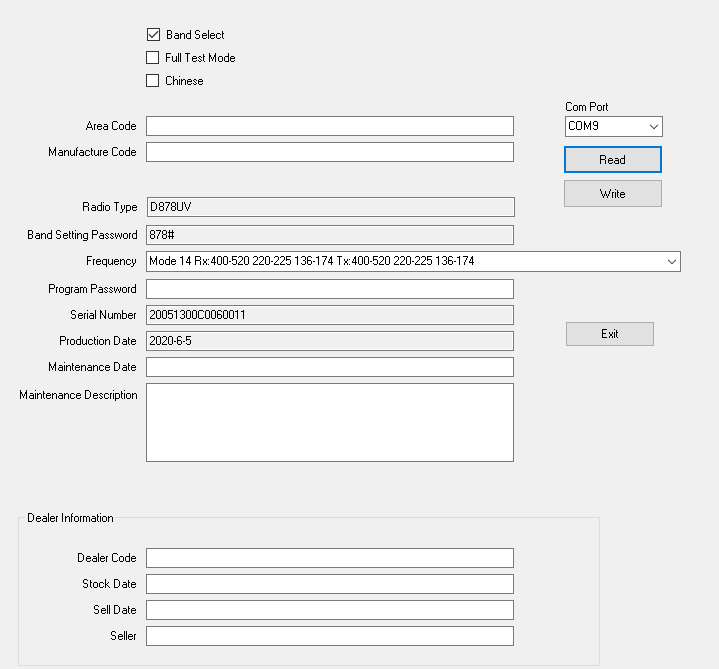
Plug the radio in. Turn the radio on. Once the radio is on select the correct Com Port.
Read the radio. After the radio is read it should look like the picture below.
If the Band Setting Password box doesn’t show a password and the Frequency doesn’t show the Mode close the program and reboot it. I had this problem multiple times with the 578. I have no idea why it was doing it. The 878 worked right the first time.
The mode we want is mode 14. That gives us ALL the frequencies on all three bands.
Once mode 14 is selected write back to the radio. The radio will reboot and if you try messing with it at this point you will see you have none of the options you want.
Next without unplugging the radio open up the Anytone CPS for your radio. Select the correct Com Port and read the radio.
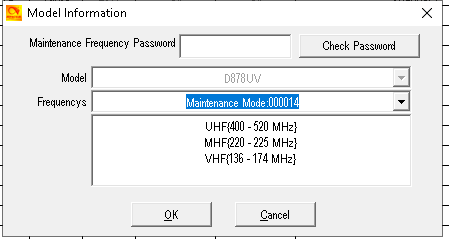
Next go to Model in the upper right-hand corner of the CPS and select it.
Then in the Frequencys box select Mode 14 and hit ok.

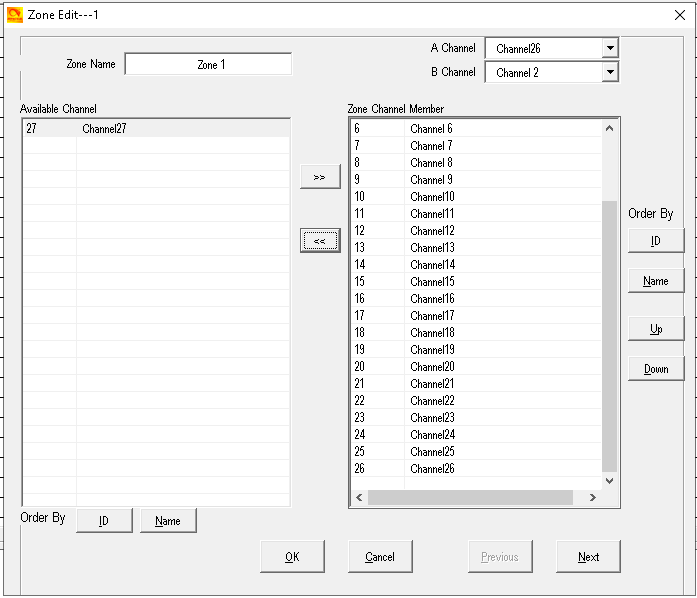
This is going to delete everything so you will have to rename and re-id your radio. Also, you will have to select a channel to the zone. There should be 2 channels there to select. Use the center right facing arrow button to move at least one channel from the Available Channel box to the Zone Channel Member box. At this point you can write to the radio or finish writing your Codeplug. I have 4 radios all with different radio names and radio ID’s so I would put these in before writing to the radio.
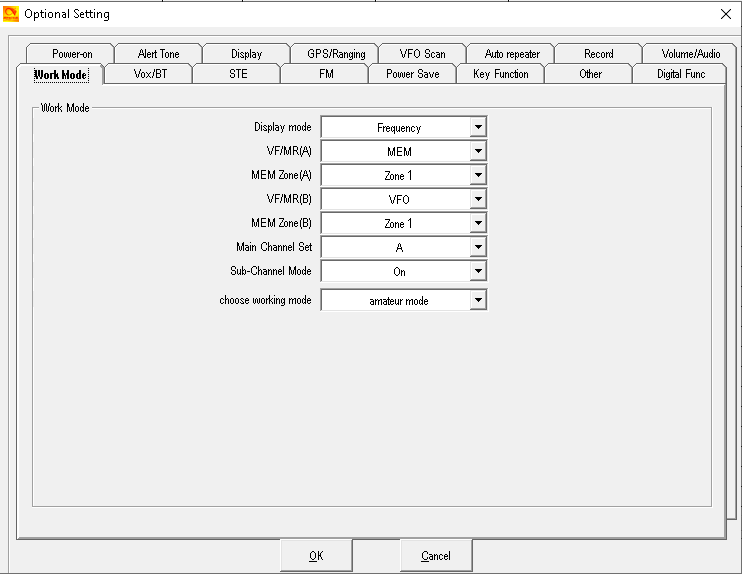
One other setting you need to make sure is on is in Optional Setting- Work Mode. Make sure you have it set to Amateur Mode and not Professional Mode. Remember to write to the radio after making all the changes you want in the software.
Another setting I found was off was after all this was done the squelch was open on the analog frequencies. On the radio go to settings-radio set-other func- Ana Sq Level- and then select Ana SG 1. That should fix the open squelch problem.
https://drive.google.com/file/d/1-zMknEYnJ1YzxkGYeQS4rr_9CCbZZbOb/view
 Wyoming Survival
Nice guide. Worked a treat. Thanks for taking the time to create this and share. Much appreciated.
LikeLiked by 1 person
No problem! Thanks for reading it.
LikeLike
I have a D878UV2. I was able to set mode 14 in the AT options. But all the CPS versions I have found don’t support mode 14. Do you know if it is possible to open up the D878UV2?
LikeLike
After you wrote mode 14 to the radio with AT OPTIONS did you read the radio with the CPS first?
LikeLike
No I didn’t read the radio with the CPS first. I just tried it now, and it worked! Thanks!
LikeLiked by 1 person
Awesome!!
LikeLike
I just applied the Mode14 to my 878uv2+, works great, thank you for this.
LikeLiked by 1 person
No problem!
LikeLike
I just upgraded the firmware, and AT Options V8 no longer works, any ideas?
LikeLiked by 1 person
If you did AT OPTIONS once you shouldn’t have to do it again. I have the newest firmware and mine still TX on 220 MHZ. I didn’t do anything with AT OPTIONS.
LikeLike
I’m new to all this so sorry if this is a stupid question, does opening up the radio this way allow you to transmit on FRS, GMRS, MURS, etc?
LikeLiked by 1 person
Yes. It gets you out of the ham bands
LikeLike
Just bought a 578 and cannot get this to work. AT options will write band 14 into the radio, but the CPS does not show a band 14. Yes, I did read from radio into CPS. Had zero problems with my 878.
LikeLike
Thats interesting. I did not have that problem. I’m not sure why that would be it AT OPTIONS wrote it to the 578. When you read the 578 on AT OPTIONS did it show the password?
LikeLike
So when I read the 578 to AT options it does not show a band setting password, nor will it let me type anything. I’ve tried closing and re-opening several times as you suggested. I’ve tried both version 6 and 8 of AT options. I even tried to manually set the radio to band 14 by pressing (P4/channel knob/power) and can cycle through the codes, but 14 is missing. The radio came with firmware version 2.06, I have updated it to 2.07.
LikeLike
Did you check to see if it would TX on 220 or outside the ham bands?
LikeLike
Yes, it would not. Seems the radio can’t be put into 14 through at options or manually. I’ve settled for band 1 for now since it unlocks everything but 220.
LikeLike
I think I might have figured it out. Let me pull the password off my radio
LikeLike
https://pnwdigital.net/anytone-modes/
LikeLike
I bet the password is 578#
LikeLike
The password on mine is 5*0#
LikeLike
Mode 14 conversion worked using your guide. The codeplug I’d built before didn’t work afterward but will try to export and pull in. If not, we’ll get it going another way. Either way, thanks for your help in doing this.
LikeLiked by 1 person
The program must have the additional file AT_BANDS.txt in the same folder. Otherwise, it will not work properly.
It will list the modes but won’t populate the band limits.
If you open the txt file you can see what it does.
LikeLike